Help & troubleshooting
Parcelwise: Ship & Pay Rules for Shopify (shipping and payment method rules)
This page collects tips and troubleshooting steps that don't fit in the app. Please check the matching section before contacting us — most issues can be solved in a few minutes.
The screenshots show the Japanese admin. Menu names in English are given in the text.
Popular:
Contents
- Check these first
- Recommended ways to use the app
- Shipping methods aren't hidden
- Cash on delivery isn't hidden
- Tag or collection conditions don't work
- Rules don't work for some regions
- No shipping methods are shown
- A method is missing from the list
- Package size or weight isn't picked up
- Discount conditions don't work
- Checkout doesn't change after editing
- The app screen doesn't load
- How to set your computer's clock
- How to test at checkout
- How each condition is checked
- Split shipments and local pickup
- Selling internationally
- What the app's messages mean
- Email notifications
- Plans, free trial and cancellation
- Installing, uninstalling and permissions
- Other common questions
- Limitations
- Before contacting us
1. Check these first
- Did you save? After changing a rule, click Save at the top. Unsaved changes don't reach checkout.
- Is it turned on? Check both Enable delivery rules (or Use payment rules) at the top and Use this rule on each rule.
- Is it active in Shopify?
- Shipping: Settings → Shipping and delivery → Delivery customizations shows "Parcelwise (delivery methods)"
- Payments: Settings → Payments → Payment customizations shows "Parcelwise (payment methods)" as Active
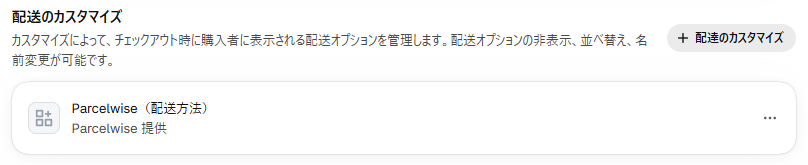
Delivery customizations, near the bottom of Settings → Shipping and delivery. 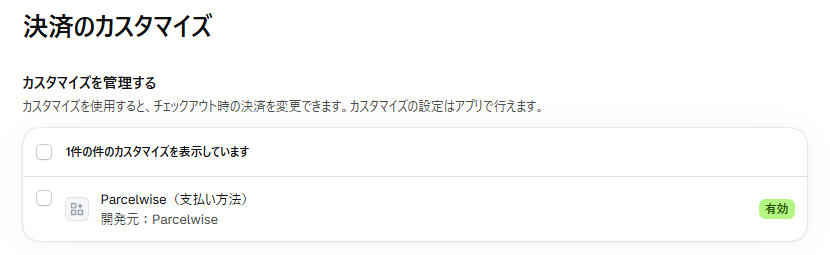
Settings → Payments → Payment customizations. - Do the names match? If you renamed a shipping or payment method in Shopify, select it again in the rule and save.
- Did you test with a new checkout? An open checkout may keep old results. See How to test at checkout.
2. Recommended ways to use the app
You don't have to measure every product (use tags)
- In Products, select the products that can only ship by parcel and use Add tags to tag them, e.g. "Parcel only".
- In the app's Delivery rules, add a rule with the condition Cart has products with selected tags and the tag "Parcel only".
- Set the action to Show only the selected shipping methods (hide others), check the methods that are allowed, and save.
Package sizes are only needed for products that use methods with thickness limits, such as letter-box delivery.
Tags must match exactly. "Parcel only" and "Parcel-only" are different tags, as are full-width and half-width characters. Copying the tag from the product page is the safest way.
If you use collections, use automated collections
Create a collection under Products → Collections, choose "Automated", and set the condition "Product tag is equal to Parcel only". Products are added as soon as you tag them. With a manual collection, products only match after you add them one by one.
Use customer tags (e.g. bank deposit only for wholesale customers)
You can also change delivery and payment methods by customer tags (the tags you add under Customers in admin).
- Payment methods: in Payment rules, enter tags under Customer tags and choose whether the customer has or doesn't have them. Example: hide bank deposit for customers not tagged "wholesale". If you also select delivery methods, payment methods are hidden only when both match.
- Delivery methods: in Delivery rules, add the condition Customer has selected tags. Use "Does not match" for customers without the tags.
- Only customers who are logged in at checkout can be checked. Guest customers are treated as not having the tags.
- Tags must be typed exactly. Up to 100 customer tags in total across all rules.
No cash on delivery or pay later for pre-orders or large orders
Under Cart products and total in Payment rules, you can hide payment methods without choosing a delivery method.
- Pre-order / made-to-order items: tag the products (e.g. "pre-order") and click No COD / pay later for pre-orders. If any product in the cart has the tag, cash on delivery and pay later are hidden.
- Order total: click No COD above an order total and enter any amount in Product subtotal is at least. The subtotal excludes shipping.
- When you combine delivery methods, product tags, order total and customer tags, methods are hidden only when all of them match.
Conditions you can use in payment rules
Only the conditions you fill in are checked. With several, payment methods are hidden only when all of them match.
| Condition | Matches when | Example |
|---|---|---|
| Selected delivery method | The customer selects the delivery method, local pickup, or no shipping (only items that don't need shipping) | No cash on delivery with letter-box delivery |
| Product tags | Any product in the cart has any of the tags | No COD or pay later when the cart has a "pre-order" item |
| Collections | Any product in the cart is in a selected collection | No COD for products in a "Frozen" collection |
| Order total (at least / less than) | The subtotal without shipping is at least / less than the amount. Enter any amount | No COD at 500 or more; no pay later under 30 |
| Total weight (at least / less than) | Product weight × quantity, in grams. Products without a weight count as 0 g | No COD at 10 kg (10000) or more |
| Destination country | Any of / none of the country codes (US, CA…). Before an address is entered, the country selected at checkout is used | No COD outside the US |
| Discounts | A product or order discount (code or automatic), a shipping discount, or a selected discount is applied | No pay later with a sale discount code |
| Customer tags | A logged-in customer has / doesn't have the tags | Bank deposit only for "wholesale" customers |
Change the names and order of delivery and payment methods
- Delivery methods: under Delivery method names on the Delivery rules page, change the names shown at checkout. Only exact name matches are renamed. For shipping app rates, Shopify adds the carrier name in front.
- Delivery methods can't be reordered, because Shopify App Store rules require the cheapest delivery method to stay first.
- Payment methods: under Payment method names and order on the Payment rules page, rename methods or move them to the top or bottom (e.g. show "Cash on Delivery (+$3 fee)" at the bottom). This always applies, separately from the hide rules.
- On stores not on Shopify Plus, credit card names and order can't be changed (a Shopify limitation). Other methods such as cash on delivery and bank deposit can.
Rule tester (before checking at checkout)
On the Rule tester page, choose products, a destination (country, state, postal code, address), a customer (tags), discounts and the selected delivery method, then click Test. It shows what your saved rules do to delivery and payment methods, and which rules matched.
- It uses the same logic that runs at checkout. Weight, packed size, tags and collections are read from the selected products.
- It uses your saved rules. Save your changes before testing.
- At real checkout, the delivery methods offered depend on the address's shipping zone. The tester lists all of your store's shipping rates.
Don't offer cash on delivery with letter-box delivery
- In the app's Payment rules, click Hide cash on delivery.
- Under When the customer selects one of these delivery methods, check letter-box methods.
- Make sure the payment method name is the name shown under Settings → Payments in admin, then save.
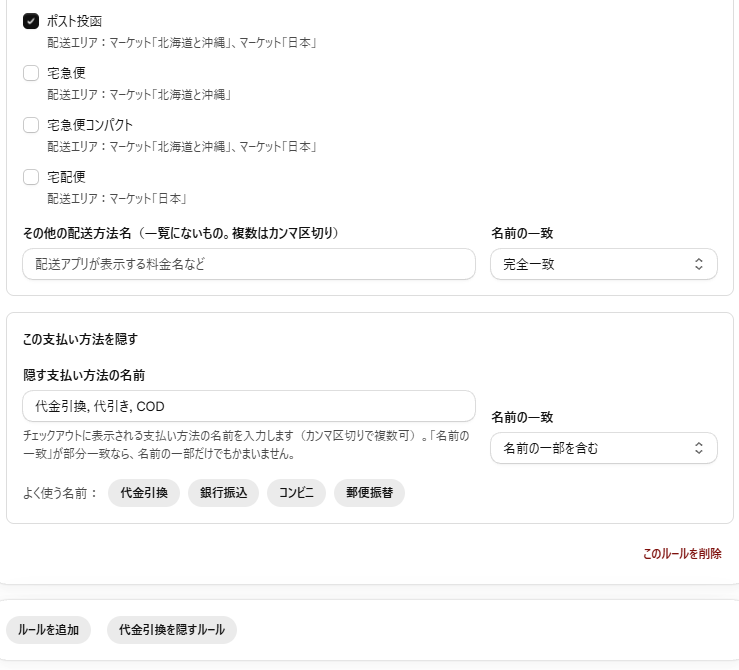
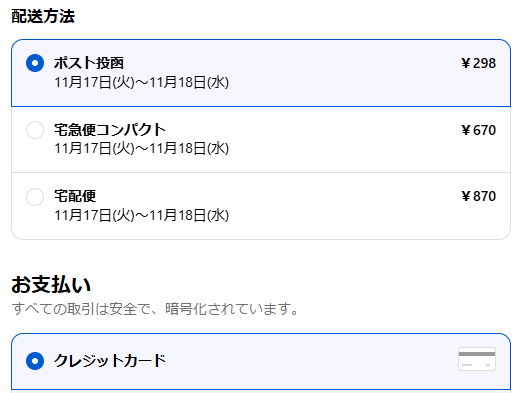
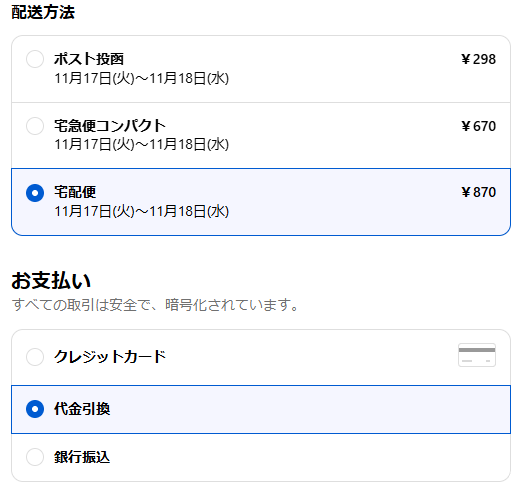
The opposite (hiding a shipping method when cash on delivery is chosen) isn't possible. See Limitations.
If you have separate rates for some regions
With Show only the selected shipping methods, check the matching rate for every region. Otherwise orders to the other region have no method left and the rule is skipped for safety (details).
"Hide" or "Show only"?
| Action | Good for | Note |
|---|---|---|
| Hide the selected methods | Removing specific methods, e.g. no letter-box delivery for thick items | New methods you add later aren't hidden automatically |
| Show only the selected methods | Products that may only use certain methods, e.g. parcel only | Select the methods for every region |
3. Shipping methods aren't hidden
- Go through Check these first.
- Read the rule summary under each rule name and check the conditions and methods.
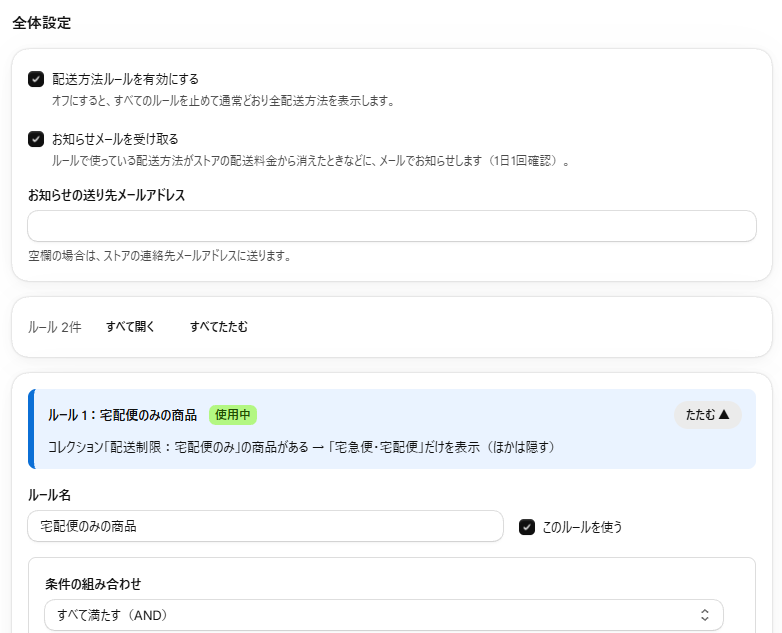
Check "Enable delivery rules", the "Active" badge and the one-line summary of each rule. - AND / OR: with Match all (AND), every condition must match. Use Match any (OR) if one is enough.
- Size conditions: check package dimensions on the Products without sizes page. Products without sizes don't match.
- Weight conditions: check the product weight and its unit. Products with no weight count as 0 g (details).
- Destination conditions are checked after the customer enters an address.
- Methods from shipping apps only match when the name is exactly the same as at checkout. Enter it under Other shipping method names.
- Safety rule: with "Show only", nothing is hidden if none of the selected methods are available for that order.
4. Cash on delivery (or another payment method) isn't hidden
The most common cause is the name. The name in Settings → Payments can differ from the name customers see at checkout (e.g. "代引き (COD)" in admin but "代金引換" at checkout). Enter the name shown in Settings → Payments. If unsure, enter both names.
- Go to checkout and copy the payment method name exactly as shown.
- Payment method names match if they contain the text you enter.
- Delivery method names in payment rules must match exactly. If you renamed one, select it again and save.
- Check that Use payment rules and Use this rule are on and saved.
- Check Settings → Payments → Payment customizations.
- Payment methods are checked after the customer chooses a shipping method; changing the method updates the list.
- If every payment method would be hidden, nothing is hidden for safety.
5. Tag or collection conditions don't work
- Tags must match exactly (spaces, full-width/half-width characters and punctuation matter).
- Separate several tags with commas. A product with any one of them matches.
- Tags go on products, not variants.
- Open the collection under Products → Collections and check that the product is really in it. Tagging doesn't add products to a manual collection.
- If you recreated a collection, select it again in the rule and save.
6. Rules don't work for some regions
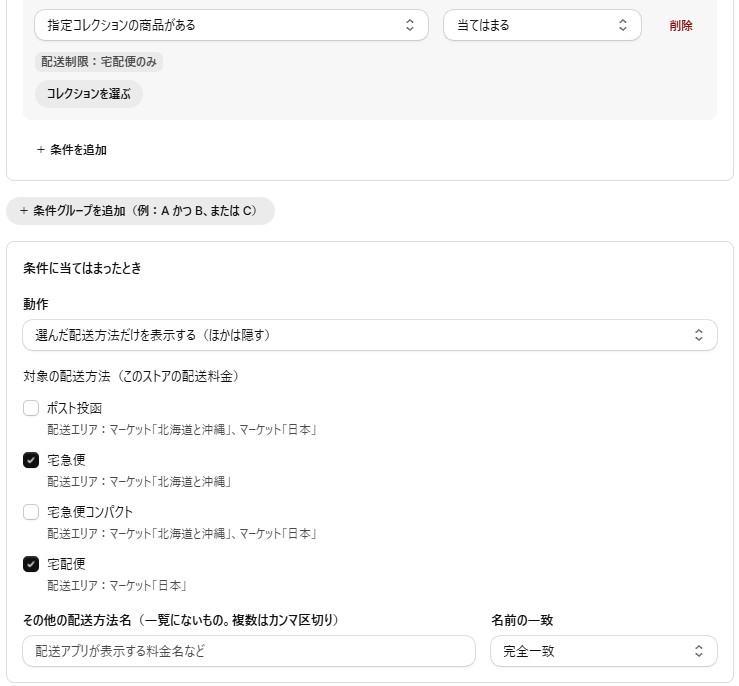
"Show only the selected shipping methods" has a safety rule: if none of the selected methods are available for an order, nothing is hidden.
Stores often have a separate rate for some regions. If the rule only selects the rate for the main region, orders to the other region can't use it, so all methods are shown.
Fix: select the rates for every region. The region (shipping zone or market) is shown under each method name.
7. No shipping methods are shown
If it's urgent: turn off Enable delivery rules and save. All methods are shown again (rules aren't deleted).
- Check whether several "Hide" rules together hide every method for that order.
- Check that Shopify has a rate for that destination. If nothing shows even with the app off, it's a Shopify shipping setting.
- After fixing the rule, turn Enable delivery rules back on and save.
8. A shipping method is missing from the list
- Inactive methods aren't listed.
- After adding or renaming a method, reload the app page.
- In stores using market-based shipping, methods are under Settings → Shipping and delivery → Shipping options for each market.

Shipping options per market. These names appear in the app. - Rates calculated by shipping apps or carriers may not be listed. Enter the name shown at checkout under Other shipping method names.
9. Package size or weight isn't picked up
- All three dimensions must be greater than 0.
- Enter sizes for each variant.
- Sizes reach the app within a few minutes. Reload Products without sizes to update immediately.
- Thickness is the shortest side; size is the sum of three sides. Order doesn't matter.
- Stacked thickness is thickness × quantity, so 2 or more items may match when 1 doesn't.
10. Discount conditions don't work
- Save after selecting discounts; saving marks the discounts for the app.
- If you recreated a discount, select it again and save.
- Expired discounts aren't listed.
- Discounts are checked after the code is entered at checkout.
11. Checkout doesn't change after editing a rule
- Check that you saved.
- Start a new checkout; an open checkout may keep old results.
- Re-entering the address or shipping method refreshes the list.
- Then go through sections 3 and 4.
12. The app screen doesn't load
- Reload the page (F5, or ⌘ + R on Mac).
- Check your computer's clock. If it's off by several minutes, sign-in checks can fail. See How to set your clock.
- Browser extensions: temporarily turn off ad blockers or privacy extensions, or try a private window.
- Another browser: try the latest Chrome, Edge, Safari or Firefox.
- Sign in again: log out of Shopify admin, log back in, and open the app.
13. How to set your computer's clock
The app checks the validity period of the sign-in information from Shopify. If your clock is far off, this check can fail. We recommend setting the clock automatically.
Windows 11 / 10
- Open Start → Settings → Time & language → Date & time.
- Turn on Set time automatically (and Set time zone automatically, or check the time zone).
- Click Sync now.
Mac
- Open Apple menu → System Settings → General → Date & Time.
- Turn on Set time and date automatically and check the time zone.
iPhone / iPad
- Settings → General → Date & Time → turn on Set Automatically.
Android
- Settings → System → Date & time → turn on automatic date and time (names vary by device).
Reload the browser after setting the clock.
14. How to test at checkout
You don't need to place an order.
- Open
https://your-store.myshopify.com/cart/clearto empty the cart. - Add the product and go to checkout.
- Enter a shipping address (destination conditions are checked after this).
- Check the shipping methods shown.
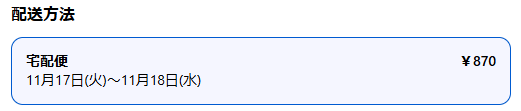
A "parcel only" rule working: only the parcel method is shown. - For payment rules, choose a shipping method and check the payment methods.
- Close the page without placing the order.
If your store is password protected, enter the store password first (found under Online Store → Preferences → Password protection).
15. How each condition is checked
If a condition doesn't match the way you expect, check these details.
| Condition | How it's checked | Watch out for |
|---|---|---|
| Products from selected collections | Matches if any product in the cart is in a selected collection | Manual collections only contain products you add. Up to 100 collections in total across all rules |
| Products with selected tags | Matches if any product has any of the tags | Tags must be typed exactly. Up to 100 tags in total across all rules |
| Customer has selected tags | Matches if the logged-in customer has any of the tags | Never matches guest checkouts. With "Does not match", guest checkouts match |
| Total cart quantity | Total number of items | Two of the same product count as 2 |
| Product subtotal (excluding shipping) | Subtotal of the products in the cart, without shipping | In the currency the customer pays in (see Selling internationally) |
| Weight of any single item | Matches if any product matches | Products with no weight count as 0 g, so "less than" conditions also match products whose weight was never entered |
| Total cart weight | Sum of weight × quantity | Products with no weight add 0 g |
| Thickness / longest side / sum of three sides of any single item | Matches if any product matches | Products without sizes are ignored (they don't match) |
| Total stacked thickness | Sum of thickness (shortest side) × quantity | Products without sizes add 0 cm. We recommend also adding a "Cart has a product without size" rule as a safety net |
| Cart has a product without size | Matches if any product is missing length, width or height | A side entered as 0 counts as missing |
| Discount conditions | Checked against the discounts applied at checkout | "A selected discount" marks the discount when you save the rule. If you recreate a discount, select it again and save |
| Destination prefecture (Japan) | The prefecture of a Japanese address | Never matches non-Japanese addresses. With "Does not match", every international address matches |
| Destination postal code (starts with) | Matches postcodes that start with what you enter | Hyphens, spaces, full-width characters and letter case are ignored |
| City or address contains text | Matches if the text appears in the city or address line 1 (address line 2 isn't checked) | Letter case and full-width/half-width characters are ignored ("PO Box" also matches "po box"). Spellings with dots such as "P.O. Box" are different, so enter common spellings, separated by commas |
| Destination country | Two-letter country code | Enter the code (US), not the country name |
About "Does not match" (NOT)
"Does not match" reverses the result. Before the customer enters an address, destination conditions don't match, so with NOT they do match. Once the address is entered, they're checked correctly.
Rules that never run
- Rules with no conditions, or with no target shipping methods, don't run (the rule shows "Incomplete").
- Empty condition groups are ignored.
16. Split shipments and local pickup
- Orders shipped in several parts (for example from different locations): if checkout shows a shipping choice for each shipment, rules are checked for each shipment separately. For example, "Cart has products with tag frozen" only affects the shipment that contains the frozen product.
- Products that don't need shipping (digital products, gift cards, or products with This is a physical product turned off) have no shipping choice, so delivery rules don't apply.
- Local pickup may not be filtered by delivery rules. To turn off local pickup, use Settings → Shipping and delivery → Local pickup in Shopify.
17. Selling internationally
- Amount conditions use the customer's checkout currency. "Subtotal 100 or more" means $100 for a customer paying in dollars and ¥100 for a customer paying in yen. If you sell in several currencies, combine amount conditions with a destination country condition and make a rule per currency.
- The prefecture condition only works for Japanese addresses. For states and regions elsewhere, use postal code or country conditions.
- Country codes: United States = US, Canada = CA, United Kingdom = GB (not UK), Australia = AU, Japan = JP.
- Template region: the region under Templates is chosen from your store's address. Switch it if you need templates for another region.
- Units: enter condition values in g and cm. Product weights in pounds or ounces are converted to grams (1 lb ≈ 454 g), and package sizes in inches are converted to cm (1 in = 2.54 cm).
18. What the app's messages mean
| Message | Meaning and what to do |
|---|---|
| Not saved yet | The rules have never been saved. Create rules and click Save to start filtering at checkout. |
| Incomplete (badge next to a rule) | The rule can't run, for example because it has no conditions or no target methods. Open the rule and fix the items listed under "Please check". |
| "…" has no conditions | Add at least one condition. |
| Empty condition group | Empty groups are ignored. Delete the group if you don't need it. |
| No target shipping methods are selected | Check methods under the rule's target methods, or enter names under Other shipping method names. |
| No collections / discounts / prefectures selected, or "…" is empty | The condition has no values. Select or enter them, or delete the condition. |
| Only up to 100 collections in total can be evaluated | Your rules use too many collections or tags. Combine them, for example into one tag. |
| Shipping methods used in your rules weren't found in your store's shipping rates | A rate was probably renamed or deleted. Select the methods again and save. If you entered a shipping app's rate name on purpose, you can ignore this. |
| Couldn't load your store's shipping rates | Reopen the app. You can still save by entering names under Other shipping method names. |
| No shipping rates yet | Create shipping rates in Shopify, then reopen the app. |
| Couldn't load your store's discounts (permission) | Reopen the app and approve the permission request if asked. |
| Couldn't save the settings for the selected discounts | A discount may have been deleted or changed. Select the discounts again and save. |
| Couldn't save / Failed to save | Wait a moment and click Save again. If it keeps failing, reload the page and save again. |
| Only some products were checked (Products without sizes) | Stores with more than about 4,000 variants have only the first 4,000 checked at once. For other products, click Save on the product page and its size is picked up within a few minutes. |
| Couldn't check product sizes | Reopen the page after a while. |
19. Email notifications
- When they're sent: when a shipping method used in a rule can no longer be found in your store's rates (renamed or deleted). Checked once a day; the same notice isn't sent twice.
- Recipient: the Notification email address, or your store's contact email if it's blank.
- To stop them: turn off Receive email notifications and save.
- Not arriving: check your spam folder. Notices aren't sent while Enable delivery rules is off.
- Language: the admin language (Japanese or English) of the person who last saved the rules.
- When you get one, open Delivery rules in the app, select the methods again in the listed rules and save.
20. Plans, free trial and cancellation
- Choose, change or cancel your plan on Shopify's plan page for the app. Charges appear on your Shopify bill.
- There are three plans: Shipping (delivery rules), Payment (payment rules) and Ship & Pay (both).
- Every plan starts with a 7-day free trial, with all of that plan's features.
- You can still create and save rules for a feature your plan doesn't include, but they won't run at checkout. They start working automatically when you change plans.
- If your plan ends (no subscription after the trial, or you cancel), delivery and payment rules stop automatically and all methods are shown as usual. Your rules are kept.
- If you subscribe again, the rules the app stopped are turned back on automatically. Rules you turned off yourself stay off.
21. Installing, uninstalling and permissions
Permissions requested at install
| Permission | Used for |
|---|---|
| Products | Reading package sizes and copying them where checkout rules can read them |
| Inventory | Reading package sizes and weights |
| Shipping and markets | Listing your store's shipping rates as target methods |
| Discounts | Listing discounts and marking the ones selected in rules |
| Delivery and payment customizations | Filtering shipping and payment methods at checkout |
We don't store customers' personal information (Privacy policy).
If you uninstall the app
- Filtering stops immediately and all methods are shown as usual.
- Your rules are deleted too. If you reinstall, create them again. Taking screenshots of your rules before uninstalling makes this easier.
- Store information on our server is deleted 48 hours after uninstalling.
22. Other common questions
- Does it still work if I change my theme?
- Yes. Rules run at checkout, so they work with any theme. No theme code changes are needed.
- Does it work for customers on phones?
- Yes. It works the same on desktop and mobile checkout.
- Does it need a particular Shopify plan?
- No. It's a Shopify App Store app, so it works on any plan (Shopify Plus isn't required).
- Can it lower shipping rates or make shipping free?
- No. The app hides methods and changes their names and order, but doesn't change rates. Set rates in Shopify's shipping settings or with discounts.
- Can I use it with other shipping apps?
- Yes. Enter the names those apps show at checkout under Other shipping method names. If another app also hides shipping methods, both apps' rules apply, which may hide more than you expect.
- Do customers see that a method was hidden?
- No. Hidden methods just don't appear in the checkout list.
- Do many rules slow down checkout?
- No noticeable delay. Rules are checked instantly inside Shopify's checkout.
- Can I test a rule without affecting customers?
- Keep the rule's Use this rule off, turn it on only while you test at checkout, then turn it off again. Testing at a quiet time is safest.
23. Limitations
- Shipping methods can't be hidden based on the payment method. Customers choose shipping first, then payment. You can hide payment methods based on the shipping method instead.
- Shipping rates aren't changed. The app hides or narrows down methods, and can change their names and order.
- Delivery method names are changed only at checkout. The names in Shopify's shipping settings stay the same (how to rename).
- The order of delivery methods isn't changed. It stays as set by Shopify (for example, cheapest first). Payment methods can be reordered.
- Nothing is hidden if everything would be hidden, so customers can always check out and pay.
- Limits: up to 50 delivery rules, 10 condition groups per rule and 20 conditions per group; 100 collections or tags in total across all rules; 50 discounts per condition; 30 payment rules.
- If you uninstall the app, filtering stops, all methods are shown as usual, and your rules are deleted (details).
24. Before contacting us
If this page doesn't solve the problem, please contact us with:
- Your store domain (e.g. my-shop.myshopify.com)
- Which rule and what happens (e.g. letter-box delivery still shows with the "Parcel only" rule)
- The product you tested and the destination region
- Screenshots of the rule and of checkout
- Which sections of this page you checked
Email: sakuralavenir@gmail.com
Hours: 10:00–18:00 Japan time (JST). We reply within 2 business days, excluding weekends and Japanese public holidays.